Vacation Tracking
Give HR managers and team leads a clear view of who is out, when, and how much leave remains for every employee.
About the Vacation Tracking
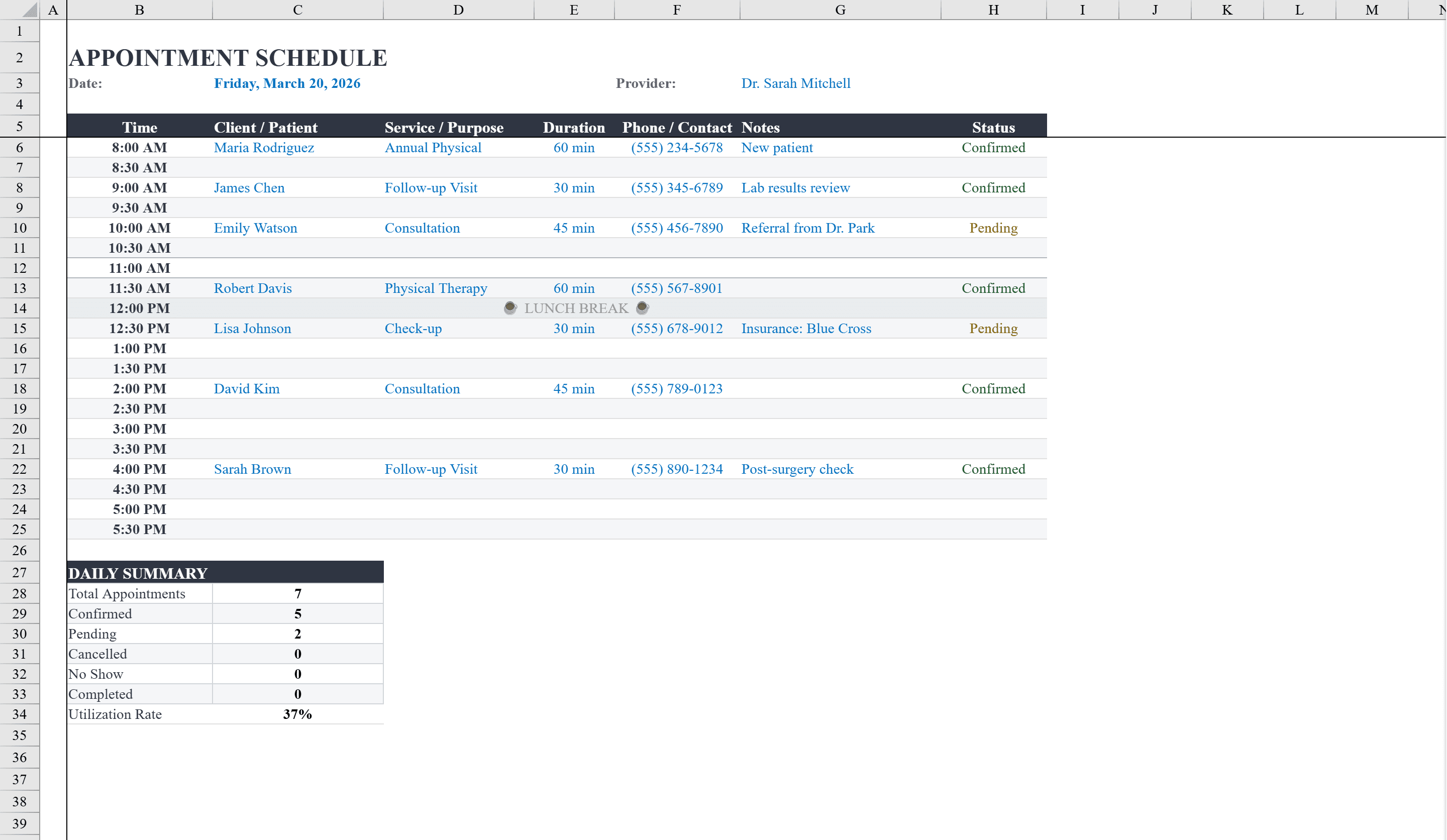
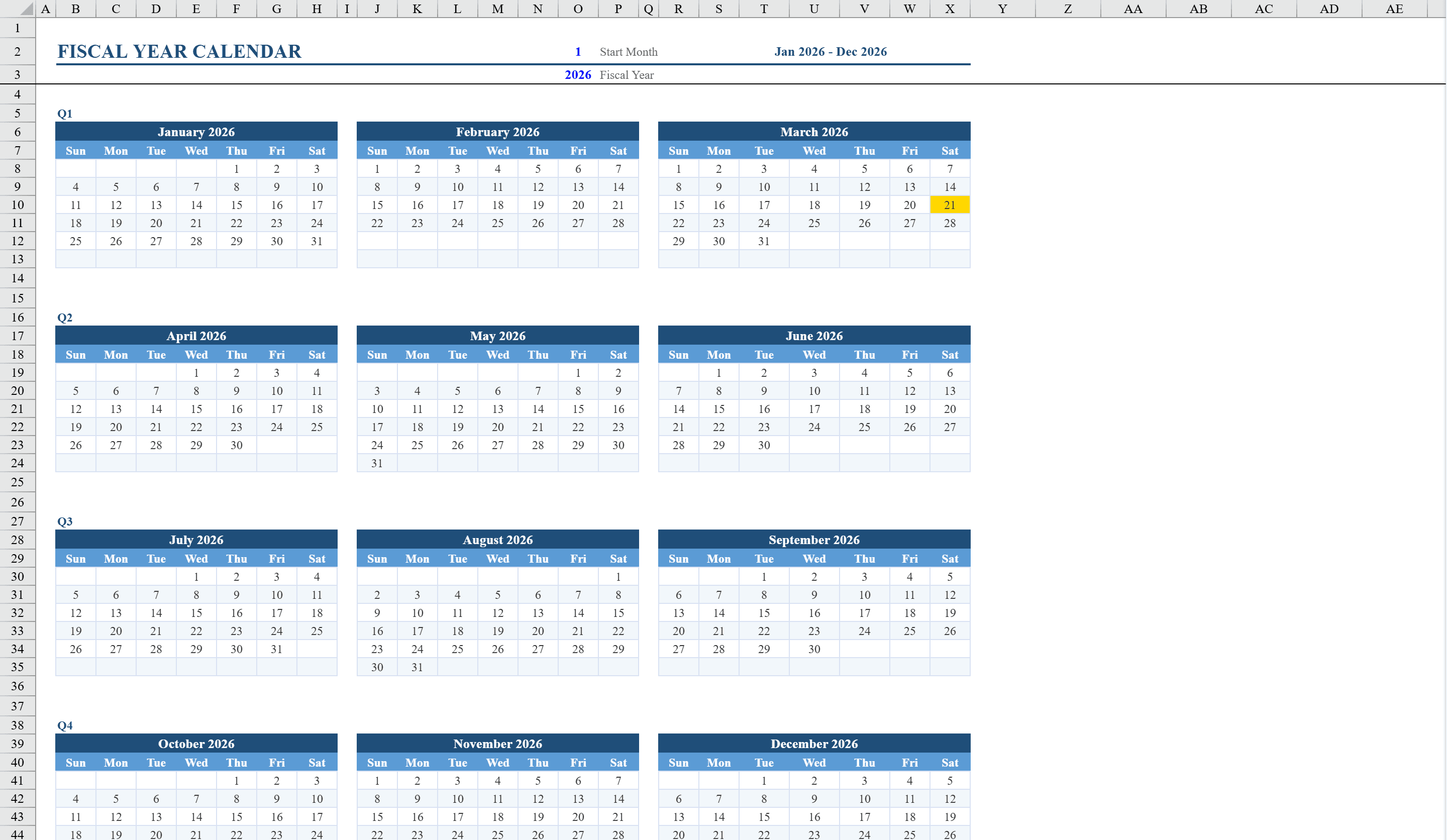
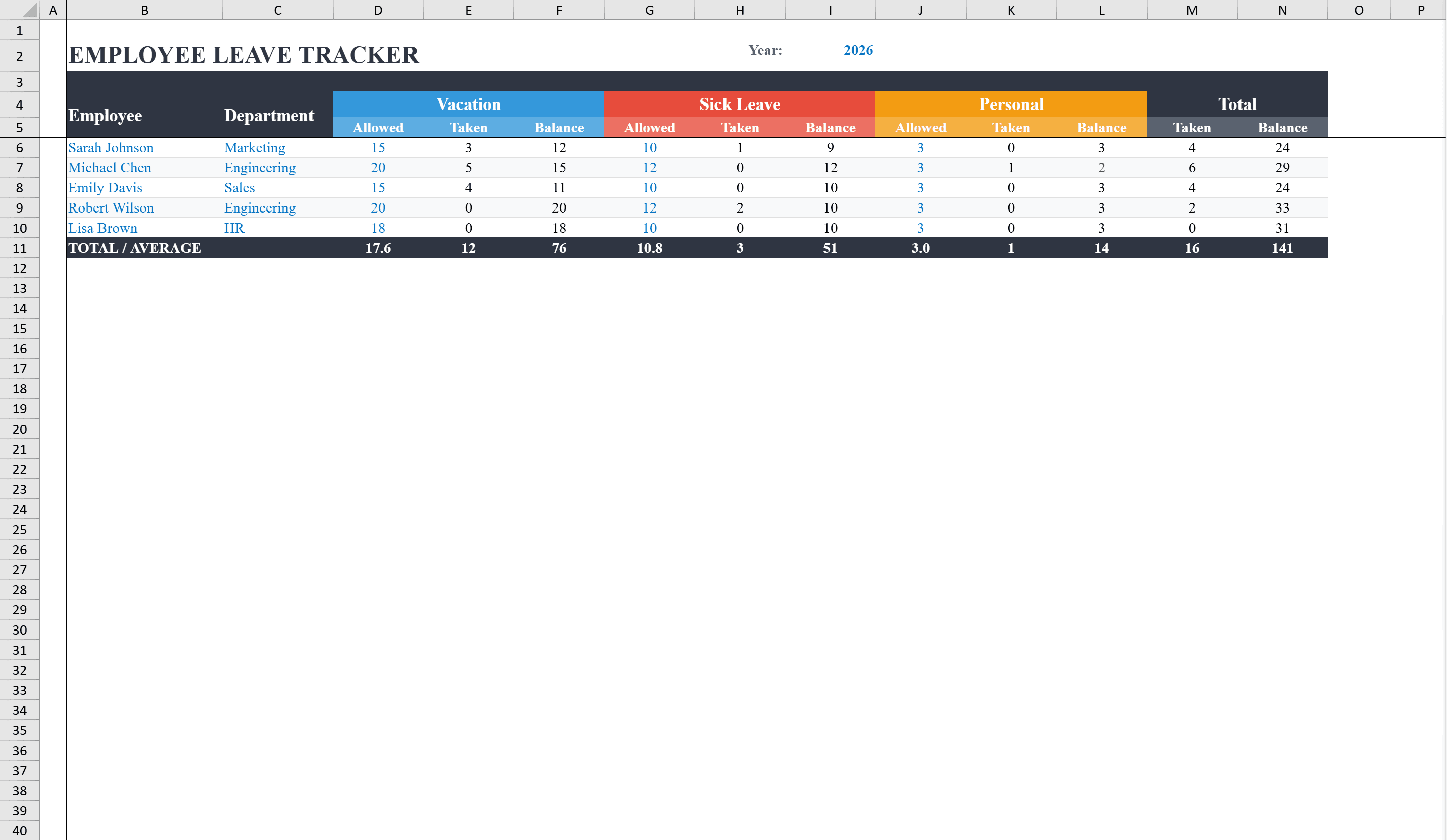
This Excel vacation tracking template provides HR managers and team leads with a two-sheet system for managing employee time off. The Leave Summary sheet displays each employee's allotments, days taken, and remaining balance across three leave types -- vacation, sick, and personal -- with color-coded category headers and automatic totals that pull from the Leave Log. The Leave Log sheet serves as the detailed record where individual leave entries are recorded with employee name, date, leave type, number of days, return date calculation, notes, and approval status. SUMIFS formulas ensure the summary stays in sync with every log entry, while conditional formatting warns when balances run low. Schedule day-to-day coverage with an appointment schedule and align leave periods to your fiscal year calendar.
Vacation Tracking Features
- Two-sheet system: Leave Summary and Leave Log
- Tracks vacation, sick, and personal leave with color-coded headers
- Automatic allotment, taken, and remaining balance calculations
- SUMIFS formulas keep summary and log sheets in sync
- Conditional formatting warns when leave balances run low
How to Use This Vacation Tracking in Excel
- 1
Set up employee allotments
Enter each employee's name and annual leave allotments for vacation, sick, and personal days on the Leave Summary sheet.
- 2
Log leave requests
Record each leave entry on the Leave Log sheet with employee name, date, leave type, number of days, and approval status.
- 3
Monitor balances
The Leave Summary sheet automatically calculates remaining balances using SUMIFS formulas that pull from the Leave Log.
- 4
Watch for low balances
Conditional formatting highlights employees with low remaining balances, helping you manage staffing and approve requests proactively.
Vacation Tracking FAQ
- How many employees can this template track?
- The template supports any number of employees. Add new rows to the Leave Summary sheet and the formulas will automatically calculate balances from the Leave Log.
- Can I add custom leave types?
- Yes. Add new columns to the Leave Summary sheet and update the Leave Log dropdown to include your custom leave types. The SUMIFS formulas can be extended to cover additional categories.
- Does this template handle partial-day leave?
- Yes. Enter decimal values (e.g., 0.5 for a half day) in the number of days field. All balance calculations support decimal values.