Waterfall Chart Template
Show stakeholders exactly how each line item builds up or breaks down a total with color-coded bridge charts.
About the Waterfall Chart Template
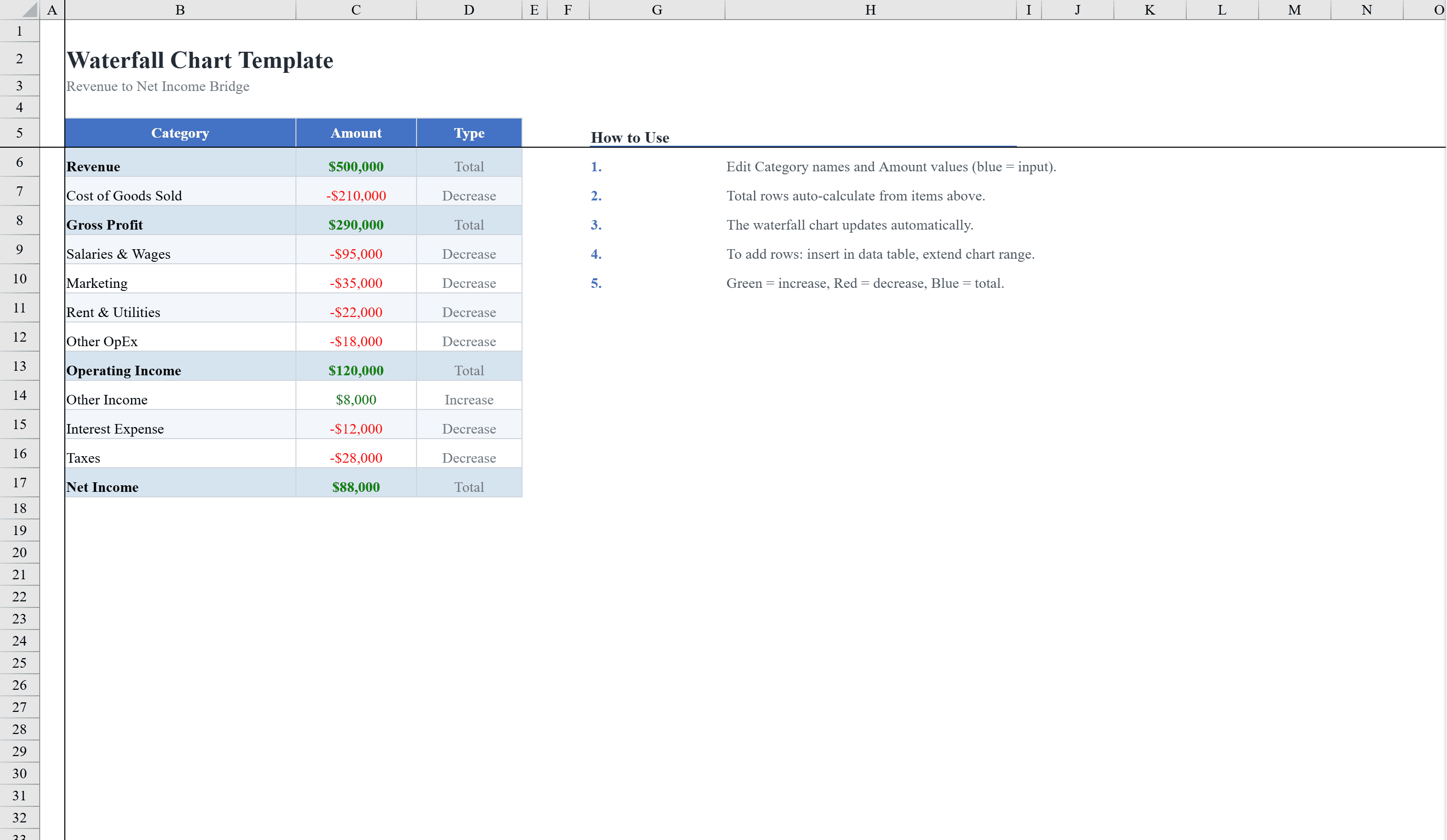
This Excel waterfall chart template helps finance professionals and business analysts visualize how individual values contribute to a cumulative total. The workbook includes two ready-to-use sheets: a Revenue-to-Net-Income bridge that breaks down revenue through expenses to net income, and a Budget Variance analysis tracking changes from an original to revised budget. Simply edit category names and amounts in the input cells and totals auto-calculate while the chart updates instantly. Embed the waterfall alongside KPI panels from the Excel Dashboard Template for a complete executive report. Color-coded formatting highlights increases in green and decreases in red, with dropdown validation ensuring consistent data entry across all category types.
Waterfall Chart Template Features
- Revenue-to-Net-Income bridge chart
- Budget Variance analysis from original to revised budget
- Auto-calculated totals with instant chart updates
- Color-coded increases in green and decreases in red
- Dropdown validation for consistent category types
How to Use This Waterfall Chart Template in Excel
- 1
Choose your analysis type
Select the Revenue-to-Net-Income bridge or Budget Variance sheet based on your needs.
- 2
Enter category data
Edit category names and amounts in the input cells using dropdown validation for consistent entries.
- 3
Review the chart
The waterfall chart updates instantly with color-coded green increases and red decreases.
- 4
Interpret cumulative impact
Analyze how individual values contribute to the final total for presentations and reports.
Waterfall Chart Template FAQ
- What types of waterfall charts are included?
- Two ready-to-use sheets: a Revenue-to-Net-Income bridge breaking down revenue through expenses, and a Budget Variance analysis tracking original to revised budget changes.
- Do the charts update automatically?
- Yes, simply edit category names and amounts and the waterfall charts auto-calculate totals and update instantly with color-coded increases and decreases.
- How are increases and decreases distinguished?
- Color-coded formatting highlights increases in green and decreases in red, making it easy to see positive and negative contributions at a glance.