Gantt Chart Template
Turn any project plan into a clear visual timeline your whole team can follow.
About the Gantt Chart Template
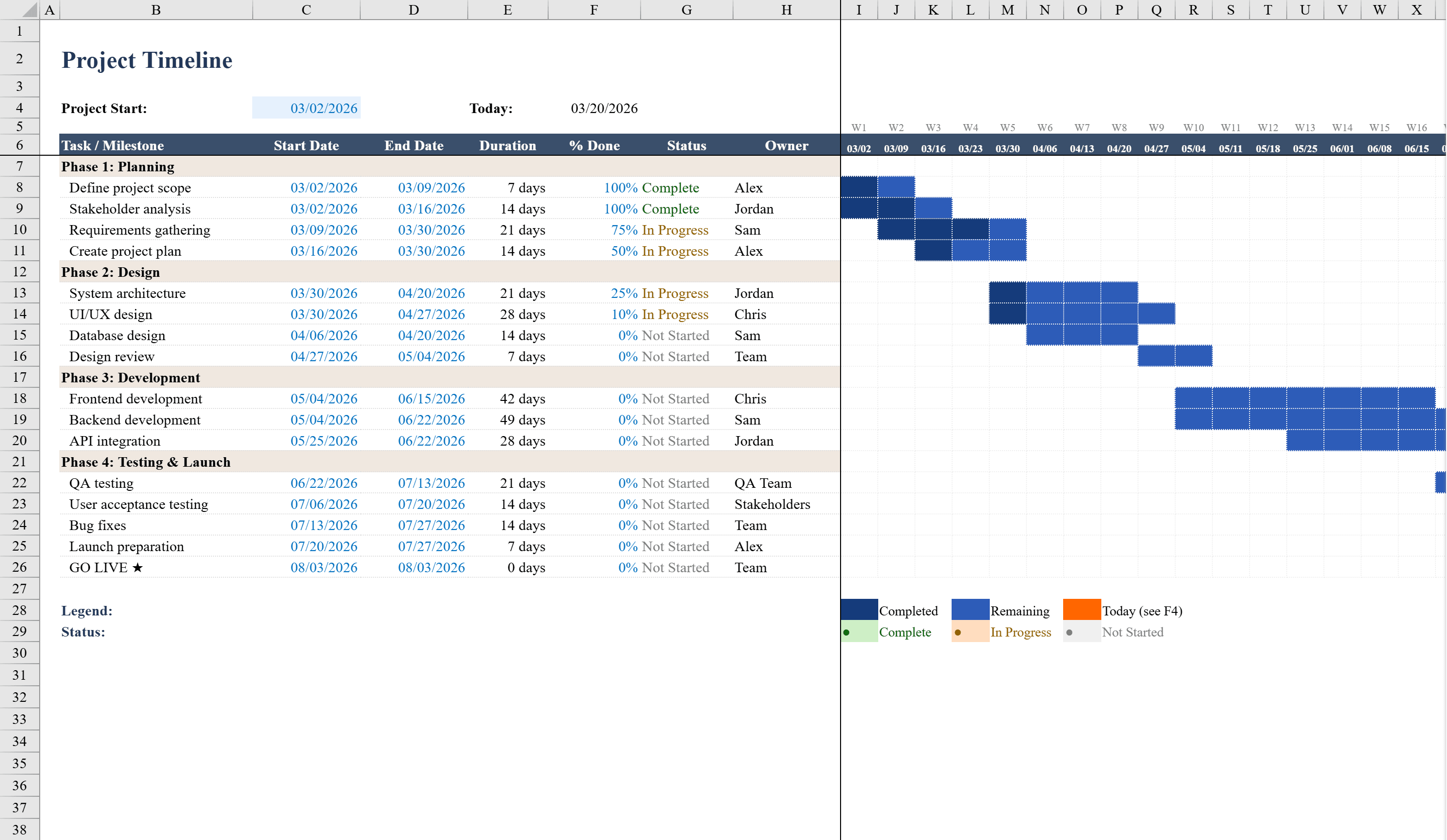
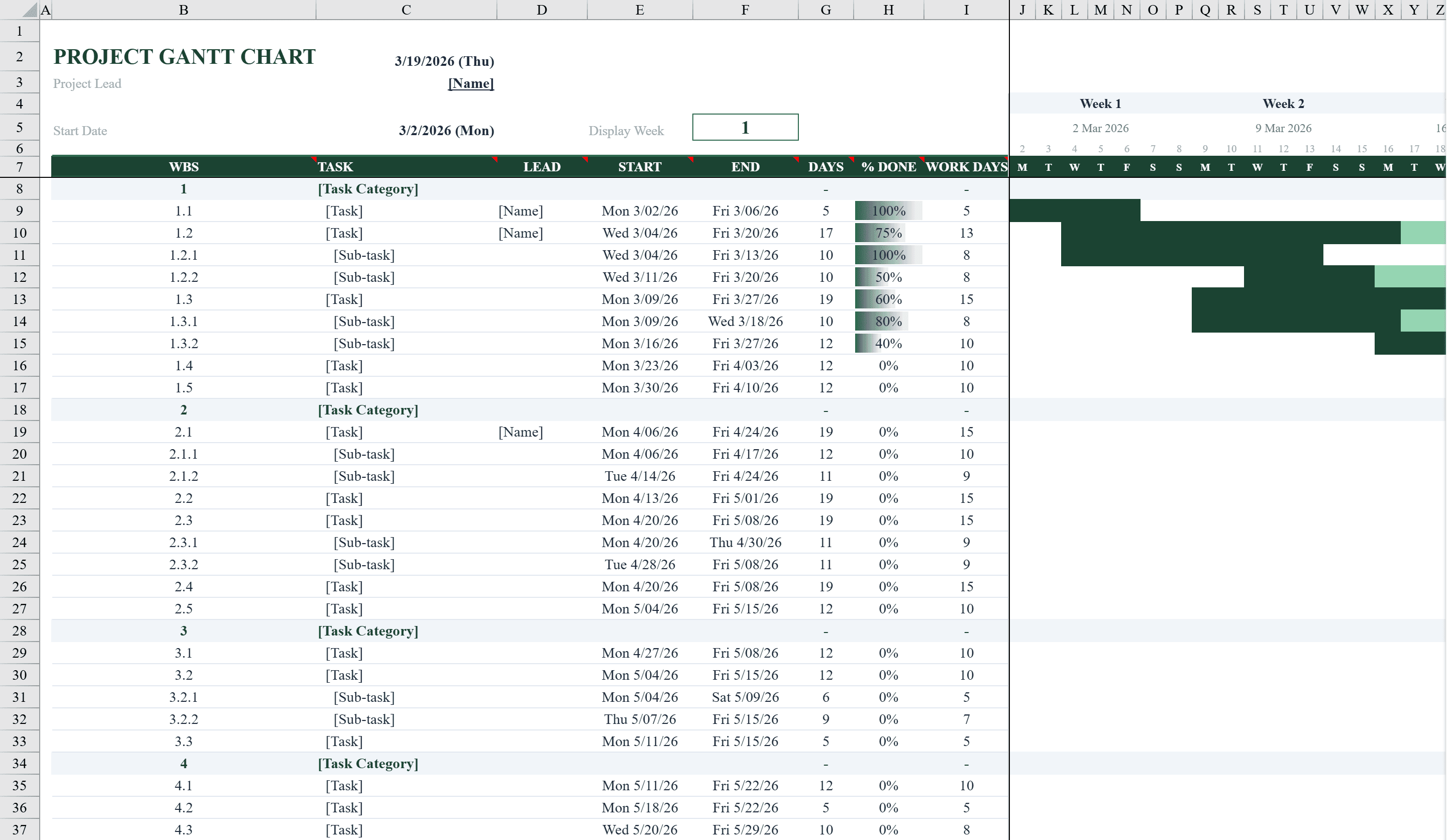
This professional Gantt chart template transforms project planning into a visual timeline directly in Excel. Designed for project managers and team leads, it supports dozens of tasks organized by project phase, each with start date, end date, duration, completion percentage, and assigned owner. Conditional formatting automatically renders horizontal Gantt bars across a weekly timeline grid, with color-coded progress indicators showing completed versus remaining work. Status dropdowns track tasks as Not Started, In Progress, or Complete. Built-in formulas calculate durations and phase summaries, making this an essential tool for planning, tracking, and communicating project schedules. For a timeline focused on completion percentages, see our Project Timeline Template.
Gantt Chart Template Features
- Horizontal Gantt bars rendered automatically via conditional formatting
- Task organization by project phase with start date, end date, and duration
- Completion percentage and assigned owner for every task
- Color-coded progress indicators showing completed vs remaining work
- Status dropdowns for Not Started, In Progress, and Complete
How to Use This Gantt Chart Template in Excel
- 1
Define project phases
Organize your tasks into logical phases and enter each task with its name, owner, start date, and end date.
- 2
Set status and progress
Use the status dropdown to mark each task and enter completion percentages as work progresses.
- 3
View the Gantt timeline
Scroll right to see the auto-generated Gantt bars color-coded by progress status across the weekly timeline grid.
- 4
Update and communicate
Keep the chart current by updating task statuses and share with stakeholders for project visibility.
Gantt Chart Template FAQ
- How are the Gantt bars created?
- The bars are generated entirely with conditional formatting — no macros or VBA required. Each cell in the timeline grid checks whether it falls within a task's date range and shades accordingly.
- How many tasks can I track?
- The template supports dozens of tasks organized across multiple project phases. You can add more rows and the Gantt bars and phase summaries extend automatically.
- Can I assign tasks to team members?
- Yes, each task includes an owner column where you can assign responsibilities. This makes it easy to filter or sort by team member.