Weekly Schedule Template
Map out every hour of your week so nothing falls through the cracks.
About the Weekly Schedule Template
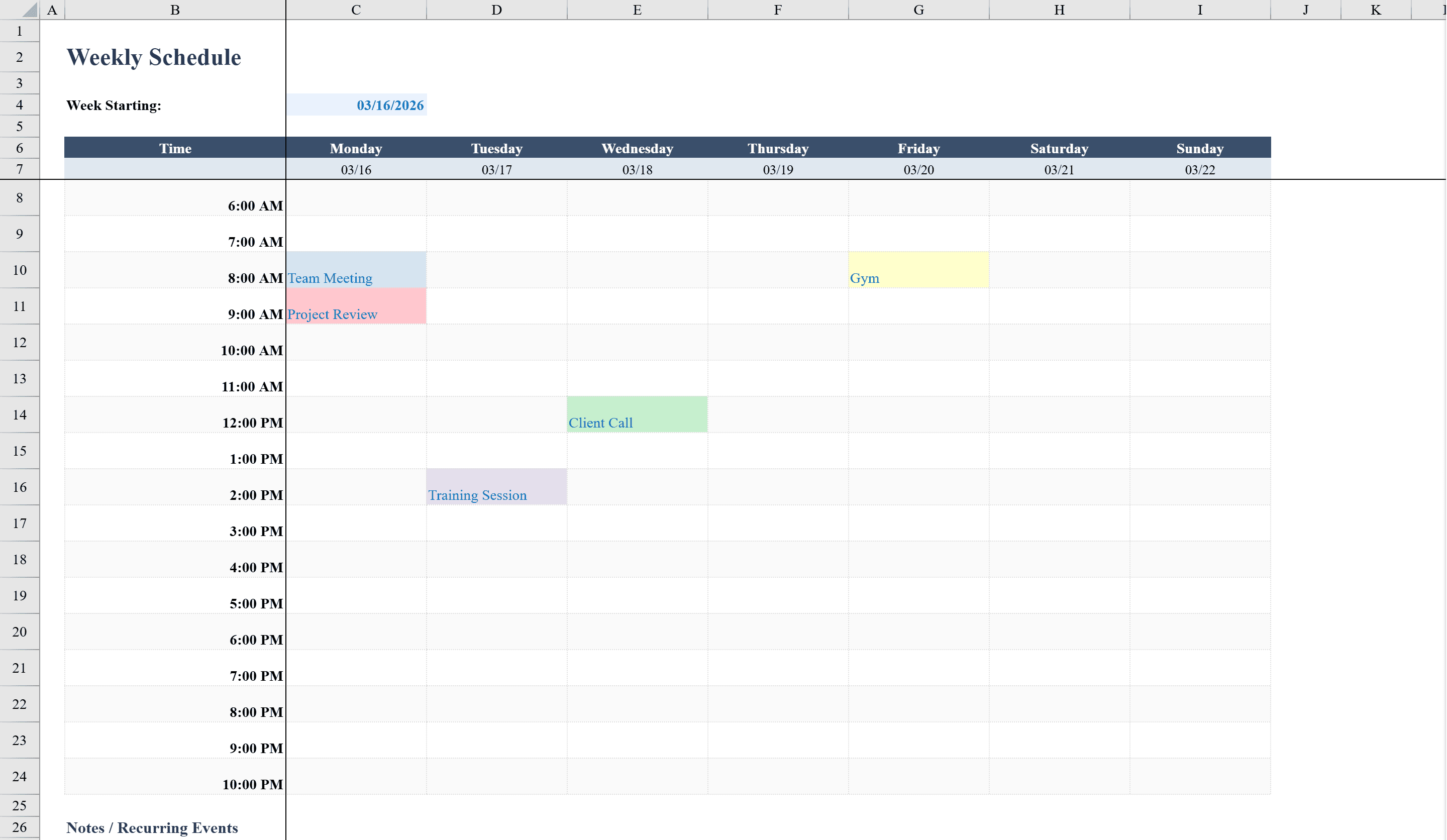
This Weekly Schedule Template is a clean, color-coded Excel planner designed for professionals and students who need to organize their time across a full seven-day week. It displays hourly time slots from 6 AM to 10 PM with columns for each day, and dates auto-calculate from a single starting date input. Dropdown menus let you quickly select common activities like meetings, calls, training, and gym sessions, while conditional formatting automatically color-codes entries by activity type for instant visual recognition. A notes section captures recurring events, and a color legend ensures the schedule stays easy to read at a glance. Managing a team? See the Work Schedule Template for multi-employee shift planning.
Weekly Schedule Template Features
- Hourly time slots from 6 AM to 10 PM for all 7 days
- Dates auto-calculate from a single starting date input
- Dropdown menus for common activities like meetings, calls, and gym
- Conditional formatting auto-color-codes entries by activity type
- Notes section for recurring events and a color legend for readability
How to Use This Weekly Schedule Template in Excel
- 1
Set the start date
Enter the week's starting date and all seven day-columns auto-populate with the correct dates.
- 2
Schedule activities
Use the dropdown menus to assign activities to each hourly time slot throughout the week.
- 3
Read the color codes
Refer to the color legend to quickly identify different activity types across your schedule.
- 4
Add recurring notes
Use the notes section to capture recurring events or weekly reminders.
Weekly Schedule Template FAQ
- What hours does the weekly schedule cover?
- The schedule spans from 6 AM to 10 PM in hourly increments, covering a full 16-hour day for each of the seven days.
- Can I add custom activity types?
- Yes, modify the dropdown list to include your own activities. Update the conditional formatting rules to assign a unique color to each new activity type.
- How do the dates auto-calculate?
- Enter the Monday (or starting day) date in a single cell, and formulas automatically populate the remaining six day headers with consecutive dates.