Bank Reconciliation Made Easy With Shortcut
How to use Shortcut for bank reconciliations in accounting. Automate transaction matching, identify discrepancies, and generate audit-ready reports in minutes.

Posted by
Adele Smolansky, Member of the Technical Staff
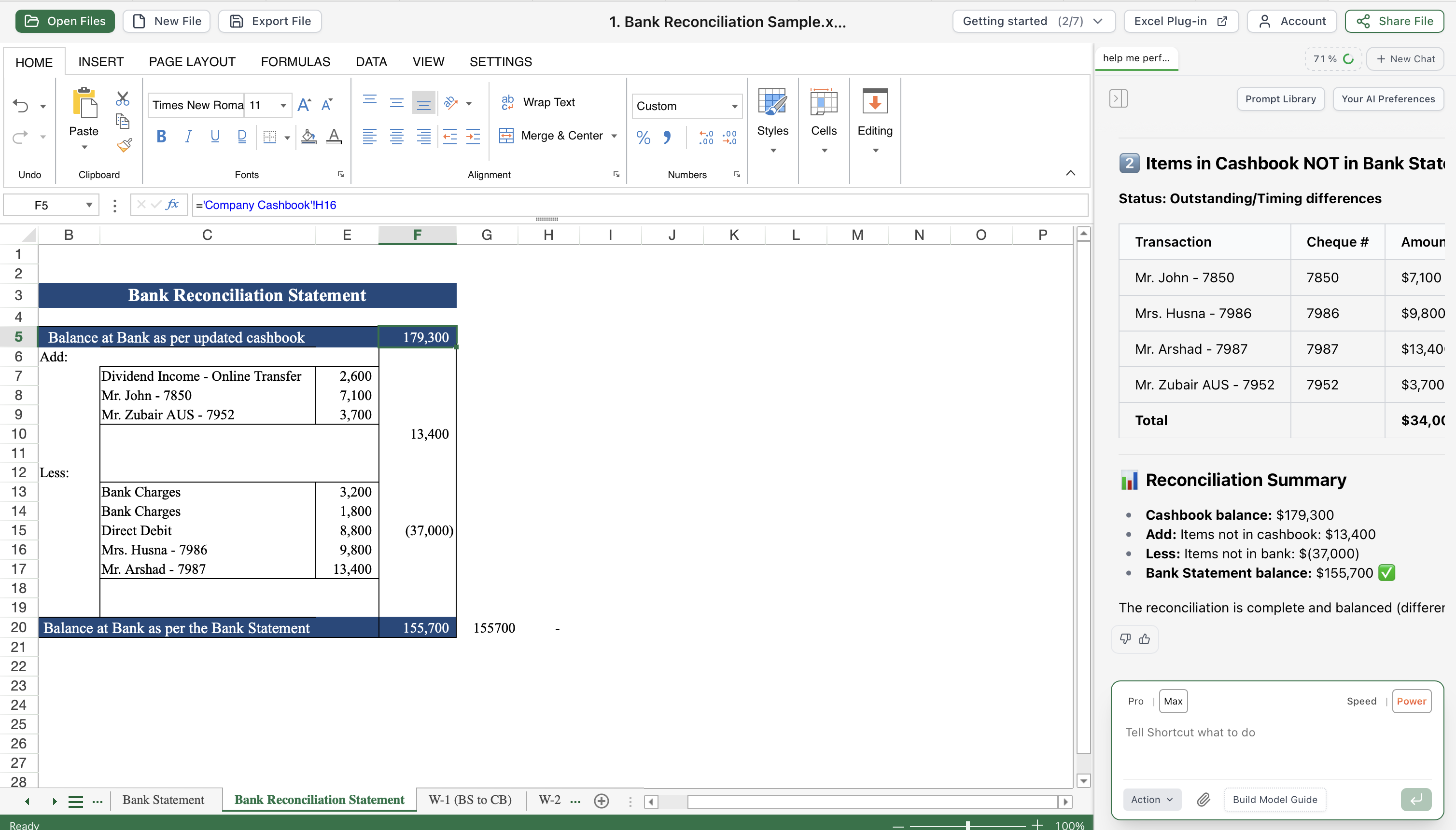
Accounting Automation with AI for Excel
Bank reconciliation is one of the most repetitive and time-consuming accounting tasks. You download your bank statement, export your general ledger, and spend hours cross-checking every transaction line by line.
With Shortcut, that process becomes as easy as asking a question.
What Shortcut Does for Reconciliation
Shortcut is an AI-powered assistant that understands accounting workflows and can help you:
✓ Line-by-Line Comparison
Compare your ledger and bank statement transaction by transaction, matching by date, amount, and description
✓ Automatic Flagging
Identify mismatches, duplicates, and missing entries without manual review
✓ Smart Summarization
Get clear breakdowns of reconciled vs. unreconciled transactions with totals and categories
✓ Audit-Ready Reports
Generate comprehensive reconciliation reports ready for period-end close and audits
Shortcut doesn't just summarize data — it actually understands accounting workflows.
Step 1: Prepare Your Data
Before you start, make sure you have the following files ready:
- Bank statement - CSV, XLSX, or connected through your accounting software
- General ledger or cash account export for the same period
Once both sources are available, you can upload them directly into Shortcut or reference them if already synced to your workspace.
Step 2: Start the Conversation
You don't need any special syntax or commands—just talk to Shortcut naturally:
- "Reconcile my bank transactions with the general ledger for September."
- "Compare the Chase bank statement with the Cash Account ledger and show me unreconciled items."
- "Match October transactions from my bank feed to the general ledger."
Shortcut will read both files, line up transactions by date, amount, and description, and then categorize them as:
Appears in bank and ledger
Found in only one source
May require manual review
Step 3: Review the Summary Report
Within seconds, Shortcut will generate a Bank Reconciliation Summary.
You can ask follow-up questions such as:
- "Show me details of the unreconciled transactions."
- "Which transactions are missing from the bank feed?"
- "Ignore transactions that clear within 2 business days."
- "Group unreconciled items by transaction type."
You can then export the report as an .xlsx file!
Bonus: Automate Future Reconciliations
Use the Shortcut Prompt Library feature to save your reconciliation query and get the bank reconciliation report you need every month.
Save and Reuse Your Workflow
- Perfect your reconciliation prompt once
- Save it to your Prompt Library with a descriptive name
- Next month, simply select the saved prompt and upload new files
- Get consistent, reliable reconciliation reports every time
Result: What used to take 2-3 hours of manual work now takes 5 minutes.
Ready to Try It?
The next time you're closing the month, skip the spreadsheet tedium and manual cross-checking.
Ask Shortcut:
"Reconcile my bank statement with my general ledger for this month."
...and watch as it delivers a clear, audit-ready reconciliation summary in minutes.
Shortcut gives you the confidence that your books are accurate—without the manual grind.
Start Your First AI-Powered Reconciliation
Join thousands of accounting teams using Shortcut to automate repetitive workflows and focus on strategic analysis instead of data entry.